You can also deploy your automation strategy on third-party channels: WhatsApp or Messenger.
However, each channel may have its own specificities that will have to be taken into account when you install your bot on those channels, here is a review of WhatsApp.
1. MCQ
- On WhatsApp, the visitor composed area can never be locked whereas, on the chat, when a bot sends an MCQ, the visitor doesn’t have access to his composing area and can only click on one of the replies suggested by the bot.


⚠ Limit on the number of multiple choices answers: 10 maximum (see: Bot Builder)
5. Create a campaign and targeting rule for WhatsApp
- Go to the following path: Engagement > Engagement strategies > click on Create a strategy
- Then you just need to define a name for your strategy. For example "WhatsApp"
- Then select the channel in the 3rd Party Messaging app
- Save to proceed to the next step: Strategy objective
- Select an objective for this campaign
- Then, if you need, create a targeting rule to display a notification on your site. For example: "Btn - WhatsApp"
NB: It will not be necessary to add this rule (Btn - WhatsApp) to a distribution rule. In fact, as soon as it is created, the notification will automatically be displayed on your site according to the criteria entered in the targeting rule.
6. Create a listening rule
To receive conversations from WhatsApp, after selecting your campaign goal (and creating a targeting rule if applicable), you will proceed to the step of creating a listening rule. Click on "Create Rule".
- Define the name of your rule
- Then, add conditions for receiving messages from the channel
⚠ In your listening rules conditions (Facebook/Messenger, WhatsApp), make sure to respect these 4 elements:

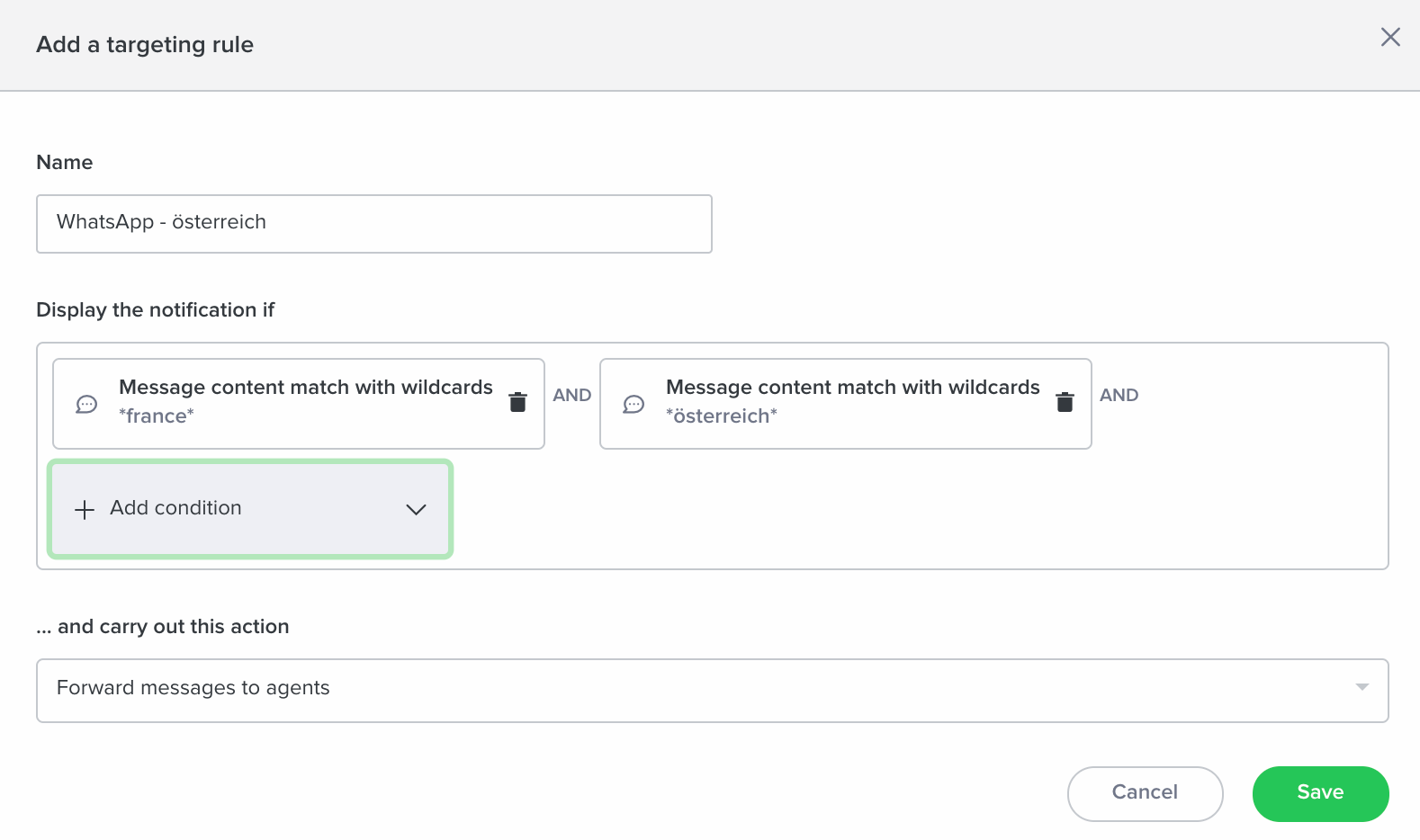
- add keywords in lower case and without accent
- use negative conditions such as: "Content of the message does not contain" to facilitate distribution
- do not use the ( | ) format
- but use one word per condition *word*
- Save your campaign as well as the created listening rules by clicking on "Save".
7. Add your listening rule to a routing rule
After creating your listening rule, add it to a new or existing routing rule, so that messages can be received by the dedicated agents. Click on "Engagement" > "Routing".