As an administrator or manager, create or edit an account to give your employees access to iAdvize. The number of accounts you can create depends on your subscription.
1. Access user creation or editing
Click on Settings > User management:
To edit or delete an account, click on the corresponding icon: or
.
You can edit your own account by direct access by clicking on your avatar (in the top right of your screen), then on "My Details":
To create a new user account, click on the icon that appears on the right. If the icon does not appear, you have reached the maximum number of accounts included in your subscription. Contact your iAdvize representative.
This is where you define the user's information (role, last name, first name, email address).
2. User role
Agent
The agent only accesses the console to handle conversations with your visitors.
Manager
The manager has restricted access, focused on the operational management of agents and conversations.
Administrator
The administrator has all rights over all administration features and can configure the iAdvize solution.
| Feature | Admin | Manager | Agent | |
|---|---|---|---|---|
| Console | Access the conversational console | ✅ if enabled |
✅ if enabled |
✅ |
| Home | Access the home page | ✅ | ✅ | ❌ |
| Engagement | Create, edit, delete an engagement strategy | ✅ | ❌ | ❌ |
| Shopping Assistant | Create, edit, duplicate, delete an Assistant | ✅ | ✅ | ❌ |
| Enable or disable an Assistant | ✅ | ✅ | ❌ | |
| Test an Assistant (Test mode) | ✅ | ✅ | ❌ | |
| Create and edit Workflows (previous interface) | ✅ | ✅ | ❌ | |
| Knowledge bases | A base groups content of the same type (Products, Helpful content) and feeds one or more Assistants. | |||
| Create a base | ✅ | ❌ | ❌ | |
| Rename a base | ✅ | ✅ | ❌ | |
| Delete a base Not possible for the only base of its type on the website, or for a base used by an Assistant. |
✅ | ✅ | ❌ | |
| Knowledge sources | A source is one of the contents of a base: CSV or PDF file, URL, content entered manually… | |||
| Add a source | ✅ | ❌ | ❌ | |
| Edit a source | ✅ | ❌ | ❌ | |
| Explore a source | ✅ | ✅ | ❌ | |
| Enable or disable a source | ✅ | ✅ | ❌ | |
| Refresh a source | ✅ | ✅ | ❌ | |
| Download a source | ✅ | ✅ | ❌ | |
| Delete a source | ✅ | ✅ | ❌ | |
| Add or delete content in a manual source | ✅ | ✅ | ❌ | |
| Reports | View reports | ✅ ¹ | ✅ ¹ | ❌ |
| Export conversations | ✅ | ✅ | ❌ | |
| Block a visitor | ✅ | ✅ | ❌ | |
| Settings: users | View the user list | ✅ | ✅ | ❌ |
| Create, edit, delete an agent | ✅ | ✅ | ❌ | |
| Create, edit, delete a manager or an administrator | ✅ | ❌ | ❌ | |
| Create, edit, delete a custom role | ✅ | ❌ | ❌ | |
| Create, edit, delete a skill | ✅ | ✅ | ❌ | |
| View groups | ✅ | ✅ | ❌ | |
| Create, edit, delete a group | ✅ | ❌ | ❌ | |
| Settings: website | Create and edit a project | ✅ | ❌ | ❌ |
| View and test page types (new interface) | ✅ | ✅ | ❌ | |
| Configure iAdvize tags and apps (Integration) | ✅ | ❌ | ❌ | |
| Configure consent management | ✅ | ❌ | ❌ | |
| Advanced settings (previous interface) | Configure the chat and third-party channels | ✅ | ❌ | ❌ |
| Create, edit, delete a canned response | ✅ | ✅ | ❌ | |
| Create, edit, delete an offer, a link, a type of conversation | ✅ | ✅ | ❌ | |
| Configure custom data, SLAs and Visitor Scoring | ✅ | ❌ | ❌ | |
¹ Limited to the user’s groups, if they have any.
3. Communication channel
Displayed to visitors
This is the configuration of information that can be displayed to visitors.
- Agent's Username: will be displayed under the avatar in the shopping panel and can be called using the dynamic tag {OP_pseudo} in the automatic message sent at the start and end of the discussion or canned answers. It can be used to keep the real identity of agents secret and to attribute a nickname to the user profile
- Avatar: a portrait of the agent that can be displayed in the dialogue window. We strongly advise you to optimise the size of your file, 60px by 60px in PNG, jpg or gif format, bearing in mind that automatic resizing is applied afterwards. This square format will be then automatically displayed in a circle.
Communication
Select the communication channels supported by your agents.
Depending on your subscription, some channels may not be available.
NB: If you have subscribed to the model in contact, there is no restriction of use per channel. (For more information about the contact model, please contact your CSM)
3.1 Chat channel
You can set the number of concurrent discussions that an agent can support (up to 6 discussions but for better ease of use we recommend not managing more than 4 discussions simultaneously). If several agents are connected to the panel, you can choose to direct new incoming chats in priority to a specific agent, by checking the "Give priority to conversations" box. New incoming chats are then assigned in priority to this agent, if they are available, in standard routing rules (not in dynamic routing rules).
3.2 Social and 3rd party channel
This block is displayed for all accounts. Turn on “Activation of social & 3rd party channels”, then choose the “Number of simultaneous contacts” (2 by default).
4. Expertise
4.1 Skills
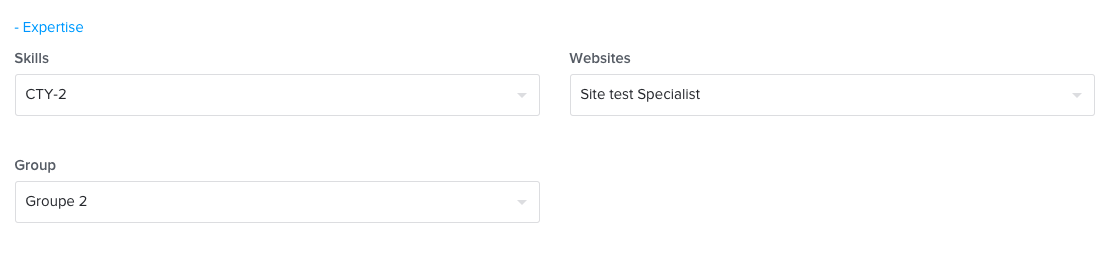
You can assign skills to your agents (e.g., after-sales service). So you can direct your visitors to a particular skill using behavioural targeting rules. If agents with this skill are not available, your visitors will be transferred to another available agent.
4.2 Projects
If your iAdvize account encompasses multiple websites, you likely have established several projects within iAdvize. It's feasible to specify that an agent will handle conversations from one or more of these websites/projects through their conversation panel.
4.3 Group
It is possible to associate a set of users to a group (in the same way as for skills). A user associated with a group, administrators included, only sees the data of their group and its sub-groups in statistics. A manager associated with a group only sees and edits the users of their group and its sub-groups. An administrator sees and edits all users, whatever their group.
5. Localization
5.1 Main language
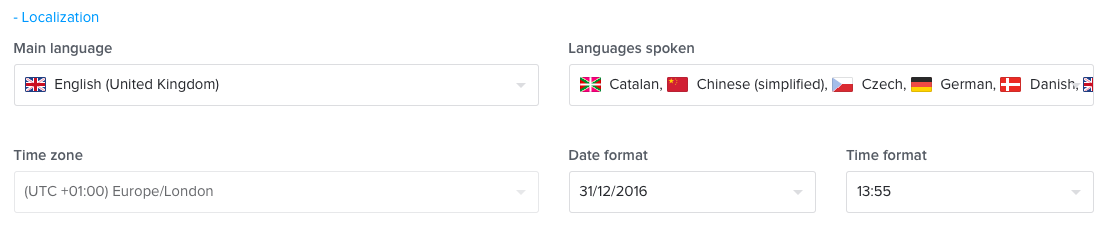
Select the primary language of the user. This is the language in which he will get iAdvize after the login.
5.2 Languages managed from the panel
These are the languages that the agents can support within their panel. If you want the agent to handle chats coming from Spanish and Swedish visitors, activate the corresponding languages in this interface.
By default, we rely on the browser language of the visitor to determine the language spoken by the visitor.
5.3 Time zone
You can now define the timezone of each user.
This setting will impact all the data that he will see in the iAdvize application (statistics, date/time of conversations, ...)
5.4 Date format / Time format
Finally, you will be able to set a favourite date and time format in your user account preferences. It means that if you prefer to work with AM/PM and yyyy-mm-dd rather than 24:00 and dd-mm-yyyy, it’s up to you now.
6. Advanced options
External ID (optional): links the ID you assign to the user to their iAdvize account.
SAML ID (optional): the user’s ID in your identity provider, used for SAML SSO login. You can only fill it in when you create the account. Once saved, it cannot be edited. A SAML ID already used by another account is rejected.
7. Forgot your password?
- Go to https://ha.iadvize.com/
- Enter your email address.
- Click “Forgot password”.
A link will be sent to you by email to reset your password.